Image block templates · 2026
Photo collage
maker.
Drop your photos into ready-made image blocks and export a finished collage.
What it does
Layouts that hold your photos
Every block is a real image frame, not a guide you have to line up.
Drop-in image blocks
Drag a photo onto a block and it fills the frame — pan and scale it inside without breaking the layout.
Grids and mosaics
Two-, three- and four-image layouts ready to fill, with evenly spaced frames.
Masonry and bento
Magic Layout generates staggered heights and mixed block sizes for a more editorial look.
Round or sharp frames
Circles, rounded corners or hard square edges — consistently across the whole collage.
How it works
Four steps to a finished collage
Pick a layout, fill it, export.
1. Pick a layout
Open Add Templates → Image Blocks and choose a grid, masonry or bento layout.
2. Drag your photos in
Drop each image onto a block.
3. Adjust inside the frame
Pan and scale each photo within its block until it's cropped how you want.
4. Export
Full-resolution PNG or JPEG, at whatever canvas size you need.
The layouts
Fixed templates, plus a generator
Five ready-made image-block layouts — and Magic Layout for everything else.
Five image-block templates
Before & After compare, Product Showcase (4 images), Feature Showcase (3), Lookbook Grid (4) and This or That (2).
Magic Layout for the rest
Need a 6-image grid, a masonry wall, a bento arrangement or a magazine split?
Add your own blocks
Any layout can be extended.
Make a collage free.
No signup, no account, no subscription.
photoeditr.app — live editor Open full editor →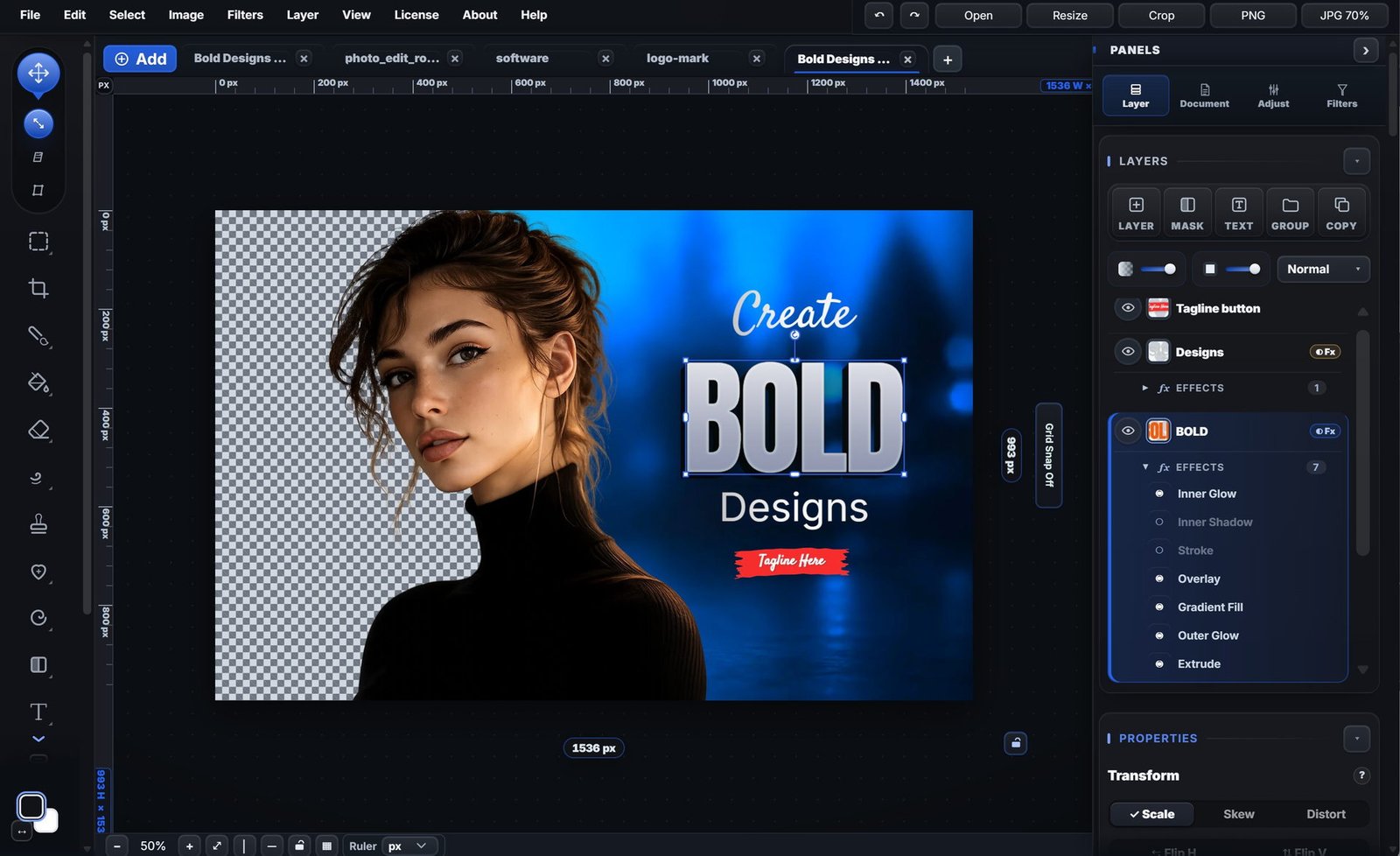
FAQ
Photo collage maker — FAQ
How many photos can I put in a collage?
The fixed Image Blocks templates hold two to four photos.
Can I crop a photo inside its frame?
Yes.
Can I make circular photo frames?
Yes.
Keep reading
Related guides
Social media graphics
Posts and stories at the right sizes.
Posters and flyers
Print-ready layouts.
Product photo editing
Clean up shots for listings.
Please verify: Store requirements and asset sizes change.